# 📝 Memory Viewer for OpenClaw
[](./LICENSE)
[](https://nodejs.org/)
[](https://github.com/silicondawn/memory-viewer/releases/tag/v1.2.0)
[](https://openclaw.com)
A beautiful, dark-themed web UI for browsing and editing OpenClaw AI agent memory files. Built specifically for [OpenClaw](https://openclaw.com) agents that store context in Markdown files.
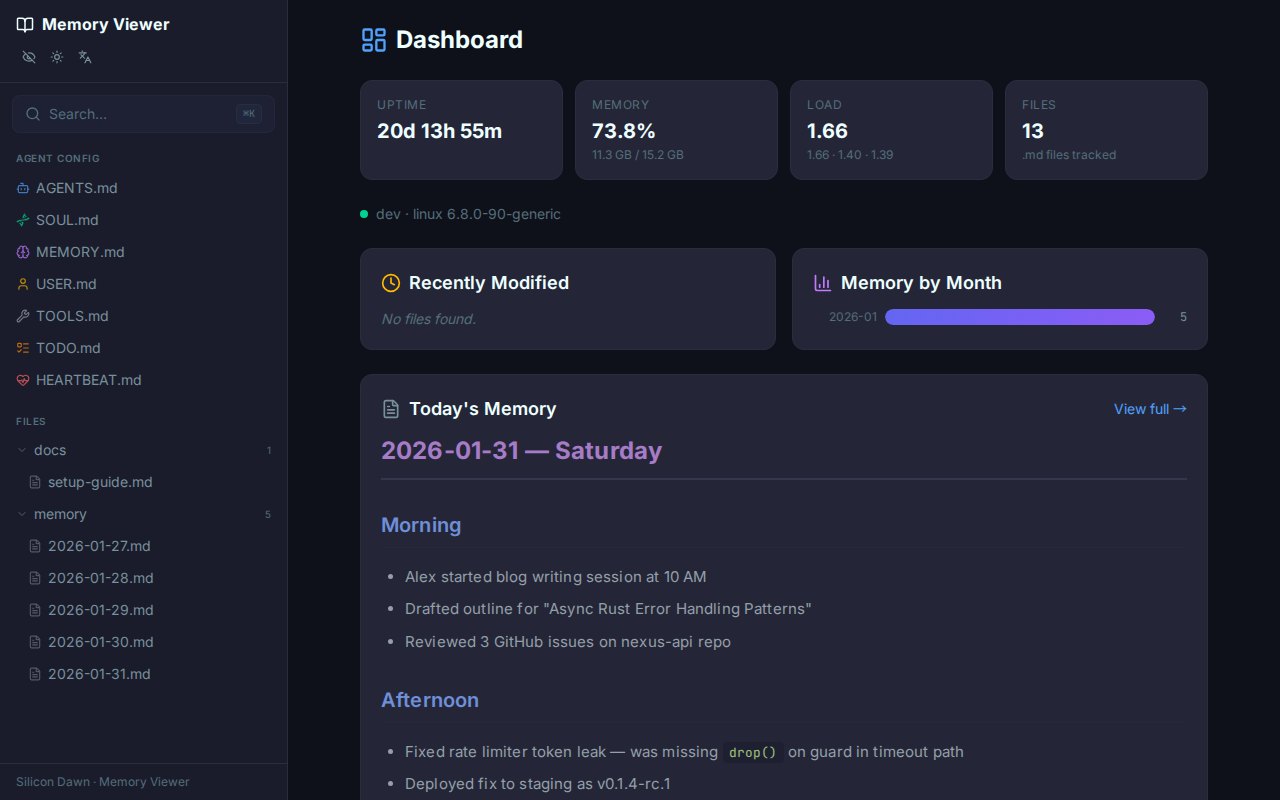
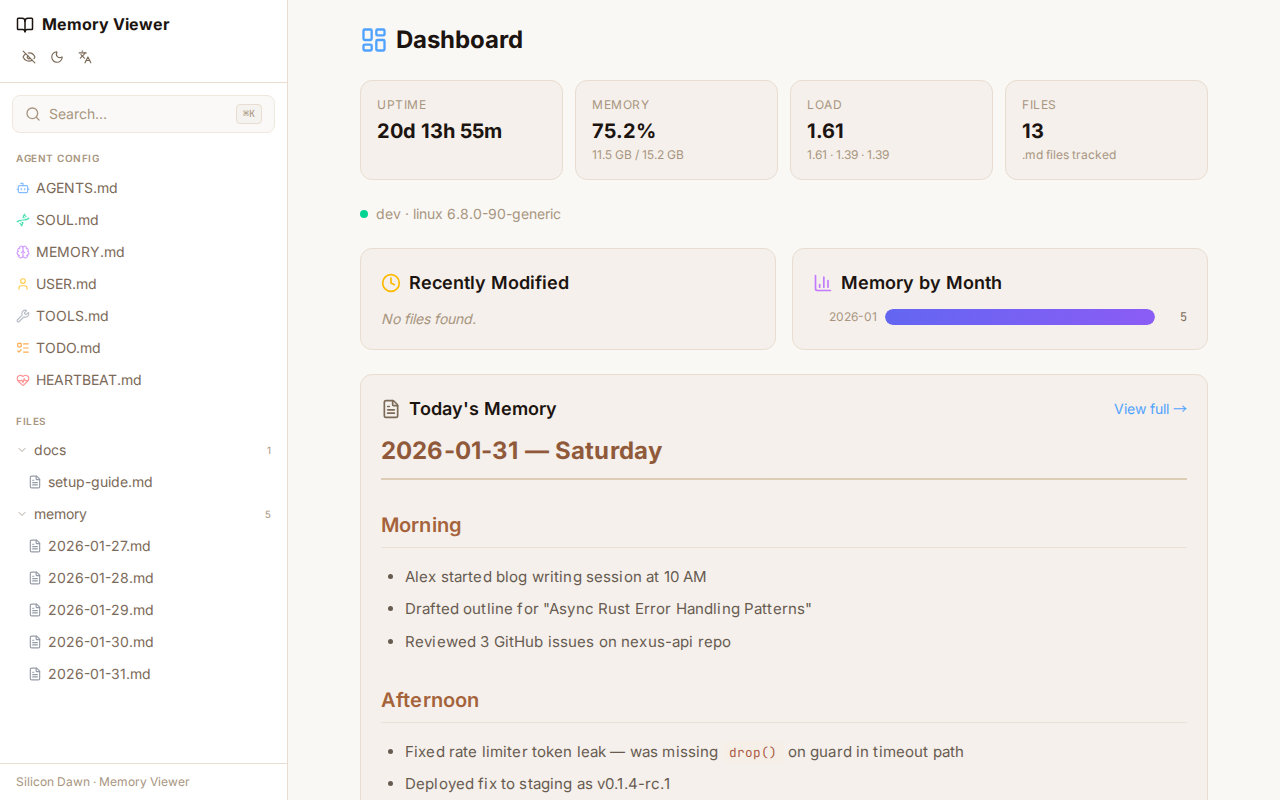
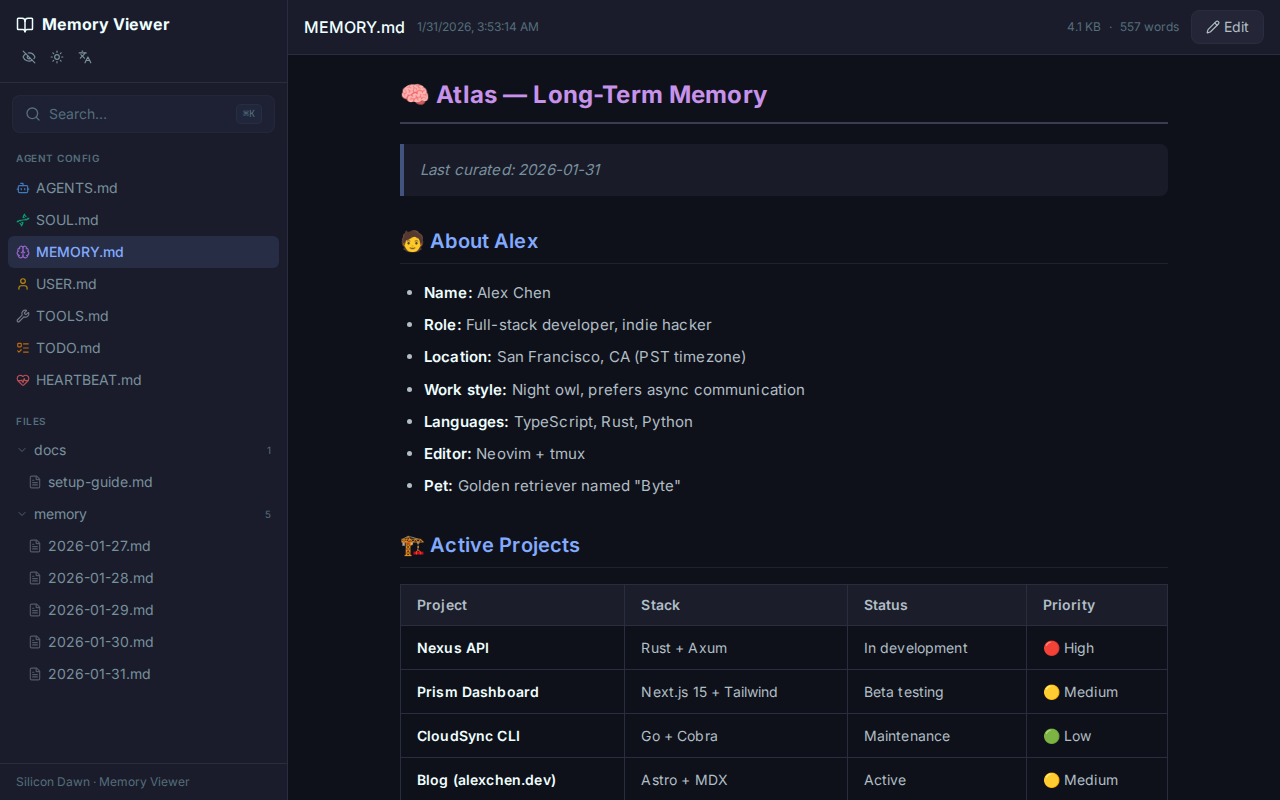
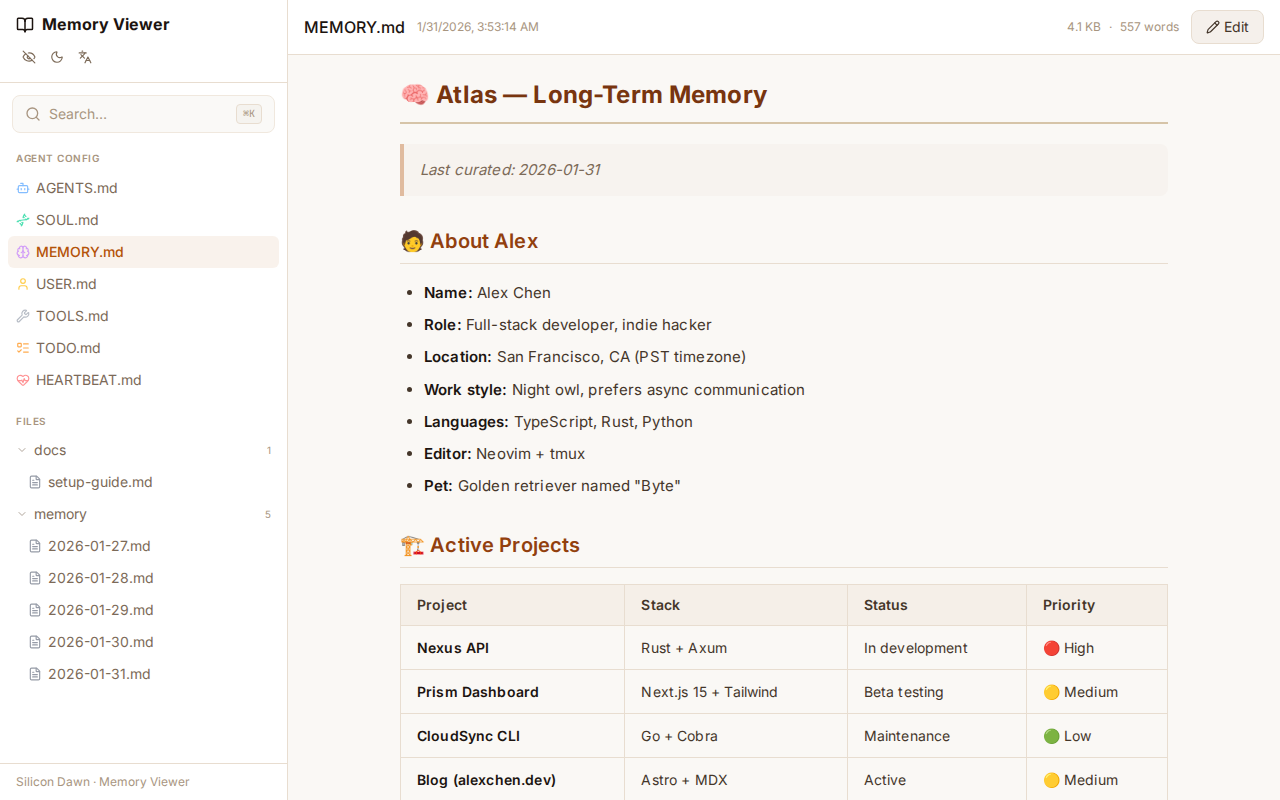
## Why Memory Viewer for OpenClaw?
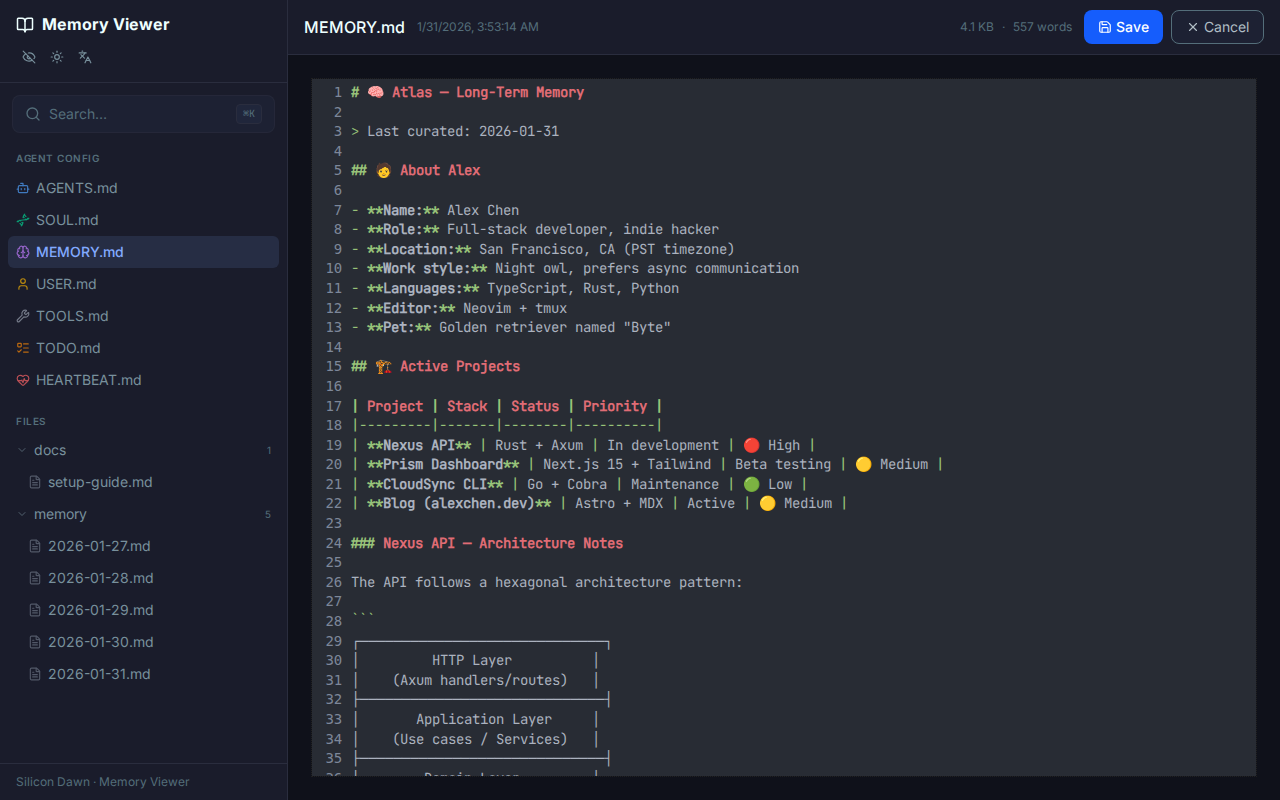
OpenClaw agents store their memory in Markdown files (`MEMORY.md`, `memory/*.md`). Memory Viewer provides a dedicated web interface to:
- **Browse** memory files in a collapsible tree
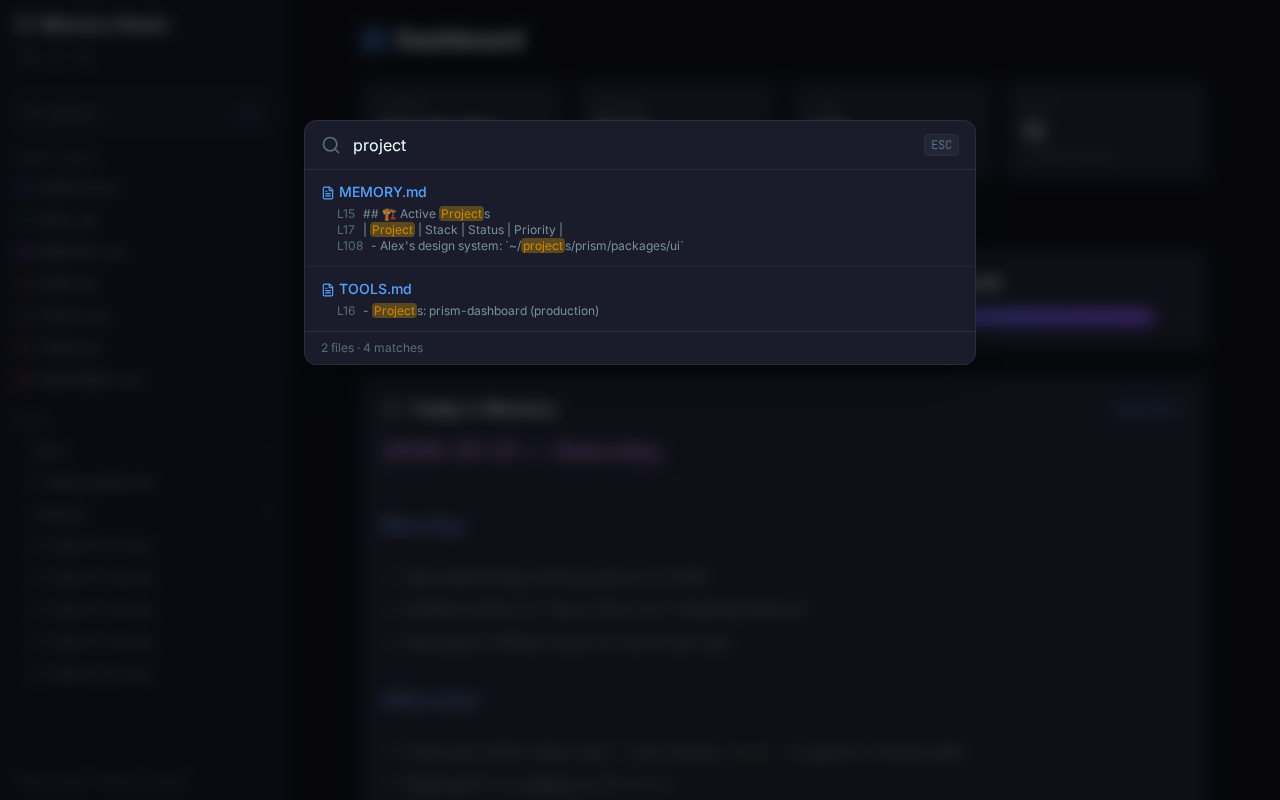
- **Search** across all agent memories instantly
- **Edit** files directly in the browser
- **Monitor** agent system status and memory usage
- **Connect** to multiple OpenClaw agents from a single UI
## Features
- **📁 File Tree Sidebar** — Navigate all `.md` files in a collapsible tree
- **📖 Markdown Rendering** — GitHub-flavored Markdown with syntax highlighting, tables, and more
- **✏️ In-Browser Editing** — Edit files directly with Ctrl+S to save, with optimistic locking for conflict detection
- **🔍 Full-Text Search** — Search across all memory files instantly (Ctrl+K)
- **📊 System Dashboard** — Server uptime, memory usage, load averages, and today's memory summary
- **🔄 Live Reload** — Files auto-refresh when changed on disk (via WebSocket), with 10s polling fallback
- **📱 PWA Support** — Installable as a standalone app with offline caching
- **🔗 Deep Linking** — Hash-based routing (`#/file/path`) for bookmarkable file URLs
- **📊 Mermaid Diagrams** — Render flowcharts and diagrams from fenced code blocks
- **🚗 Large Screen Optimized** — Touch-friendly UI for car displays (Tesla) and large screens
- **🌙 Dark/Light Theme** — Toggle between themes, designed for always-on dashboards
- **📱 Responsive** — Works on mobile with a slide-out sidebar
- **🌐 Multi-bot Connections** — Connect to multiple OpenClaw agent workspaces from a single UI
## Quick Start
```bash
# Clone
git clone https://github.com/silicondawn/memory-viewer.git
cd memory-viewer
# Install
npm install
# Run (starts both API server and Vite dev server)
npm run dev
```
Then open http://localhost:5173 in your browser.
## OpenClaw Integration
Memory Viewer works seamlessly with OpenClaw agents. To connect to your OpenClaw agent:
1. Make sure your OpenClaw agent is running and accessible
2. In Memory Viewer, click the network icon in the top-right
3. Add your agent's workspace path (e.g., `/home/user/clawd`)
4. Start browsing and editing your agent's memory files
## Deployment
Memory Viewer can be deployed as a standalone service:
```bash
# Build for production
npm run build
# Start production server
npm start
```
The server runs on port 8901 by default. You can expose it via Cloudflare Tunnel, Nginx, or any reverse proxy.
## Docker Deployment
### Quick Start (Pre-built Image)
Use the pre-built image from GitHub Container Registry:
```bash
# Run directly with docker
docker run -d \
-p 8901:8901 \
-v ~/.openclaw/workspace:/app/workspace:ro \
--name memory-viewer \
ghcr.io/silicondawn/memory-viewer:latest
# Or use docker-compose
docker-compose up -d
```
Open [http://localhost:8901](http://localhost:8901) in your browser.
### Build from Source
```bash
# Clone the repository
git clone https://github.com/silicondawn/memory-viewer.git
cd memory-viewer
# Build and run
docker-compose up -d --build
```
### Docker Configuration
| Variable | Default | Description |
|----------|---------|-------------|
| `PORT` | `8901` | Container port (fixed in image) |
| `WORKSPACE_DIR` | `/app/workspace` | Directory inside container for `.md` files |
| `STATIC_DIR` | `/app/dist` | Built frontend assets |
### Customizing the Mount Path
Edit `docker-compose.yml` to point to your actual OpenClaw workspace:
```yaml
volumes:
- ~/.openclaw/workspace:/app/workspace:ro
# Windows: C:/Users/YourName/.openclaw/workspace:/app/workspace:ro
```
The `:ro` flag mounts the directory as read-only (recommended for safety).
### Building Custom Images
Use the provided build script:
```bash
# Build with default tag (latest)
./scripts/build-docker.sh
# Build with specific tag
./scripts/build-docker.sh v1.2.0
# Build and push to registry
PUSH=true ./scripts/build-docker.sh v1.2.0
```
## License
MIT © Silicon Dawn